| Filename | Comment | Published |
| CommStat-4.2.7.zip | Windows, Linux, Mac & Pi zip | June 7, 2026 |
| Python-3.14.4-amd64.exe | Python for Windows | April 07, 2026 |

Important Notice: If CommStat fails to start after a recent update, run linuxinstall again as outlined in the instruction below.
Prerequisite
- Windows Command Prompt - You’ll need to be comfortable opening a command prompt and running simple commands.
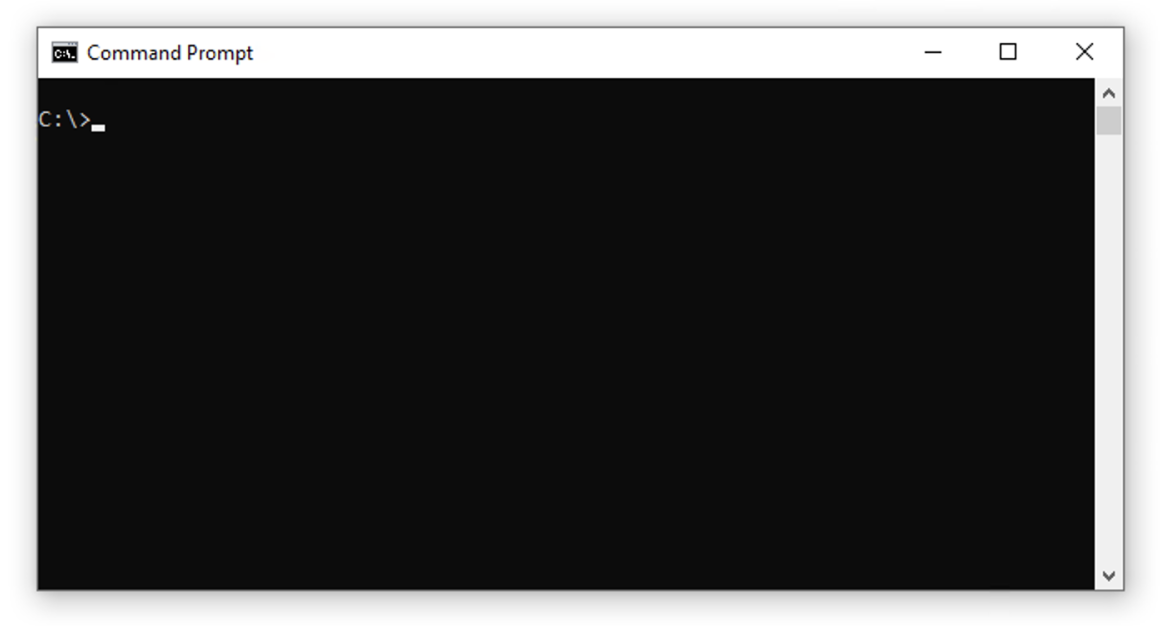
 If you are not familiar with the Windows Command Prompt, you may need assistance installing CommStat.
Getting Help
AI Assistance: You can use AI tools like Claude, ChatGPT, Grok, Gemini or Coilot for step-by-step help.
Personal Assistance: If you desire personal assistance, ask your grandson. 😄
Download Python and CommStat
CommStat is written in Python. If Python is not already installed on your system, you’ll need to install it before running CommStat.
Note: For More Information About Python, Visit the Website Here: Python.org
Run the Python Installer
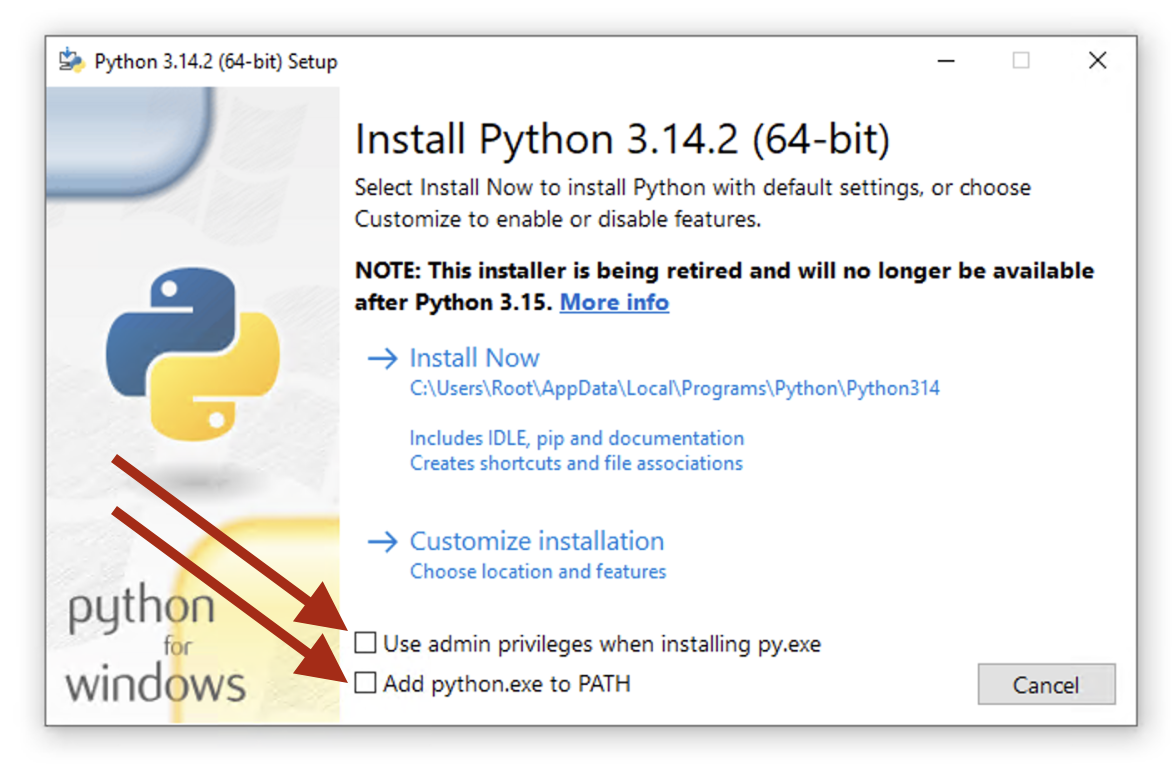
When you see this screen, check the, "Use admin privileges when installing py.exe" and "Add python.exe to the PATH" boxes.
Then click the Install Now link.
After Python is installed, Reboot your Computer
Test Your Python Installation
From a command prompt. type:
C:\>python --version
If you see:
Python 3.14.3
You installed Python successfully!
Getting Help if Something Went Wrong
AI Assistance: You can use AI tools like Claude, ChatGPT, Grok, Gemini or Coilot for step-by-step help.
Personal Assistance: If you desire personal assistance, ask your grandson. 😄
Next, Install CommStat
Create a directory for CommStat. A good suggestion is C:\CommStat (but you can put it anywhere).
Upzip the commstat zip file into the folder you just created.
Note: CommStat doesn’t require any installation. Just unzip the file and you’re good to go.
Prepare the CommStat Environment
From a command prompt, cd into the CommStat Folder
C:\>cd \CommStat
Then type this command
C:\Commstat>Python install.py
Note: This command only needs to be run once.
To run Commstat now and in the future, type
C:\CommStat>Python commstat.py
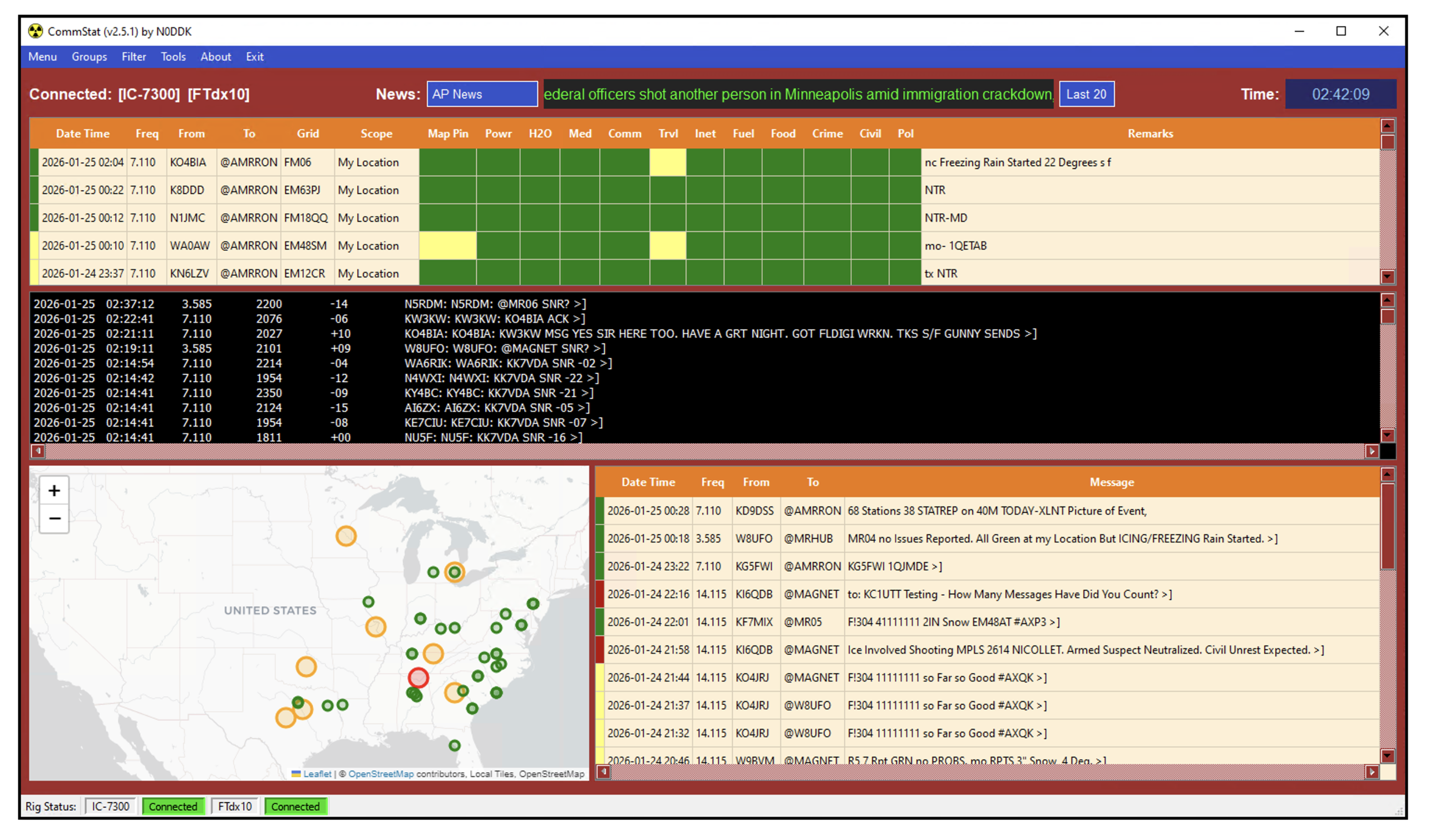
You should now see the CommStat app
Creating a Desktop Icon
From a command prompt, enter the following command
C:\>where python
You may see several lines of output. that looks like this:
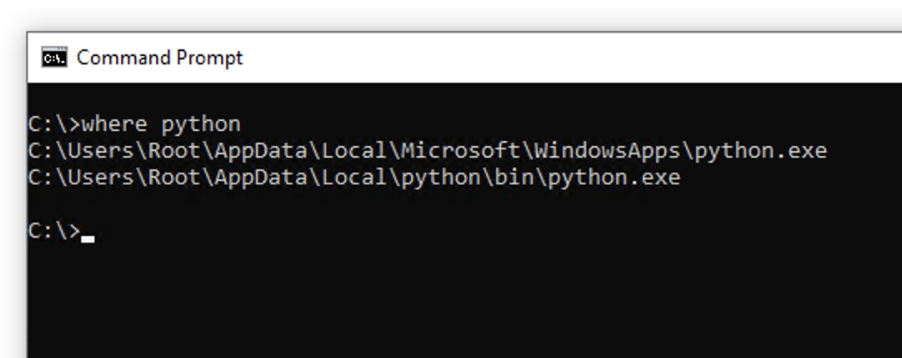
Some lines may have Python version numbers. Use your mouse and highlight the row with the latest version number and press the Enter key.
(This is how you copy from command line to clipboard)
Next: right-click on your desktop and select "New -> Shortcut."
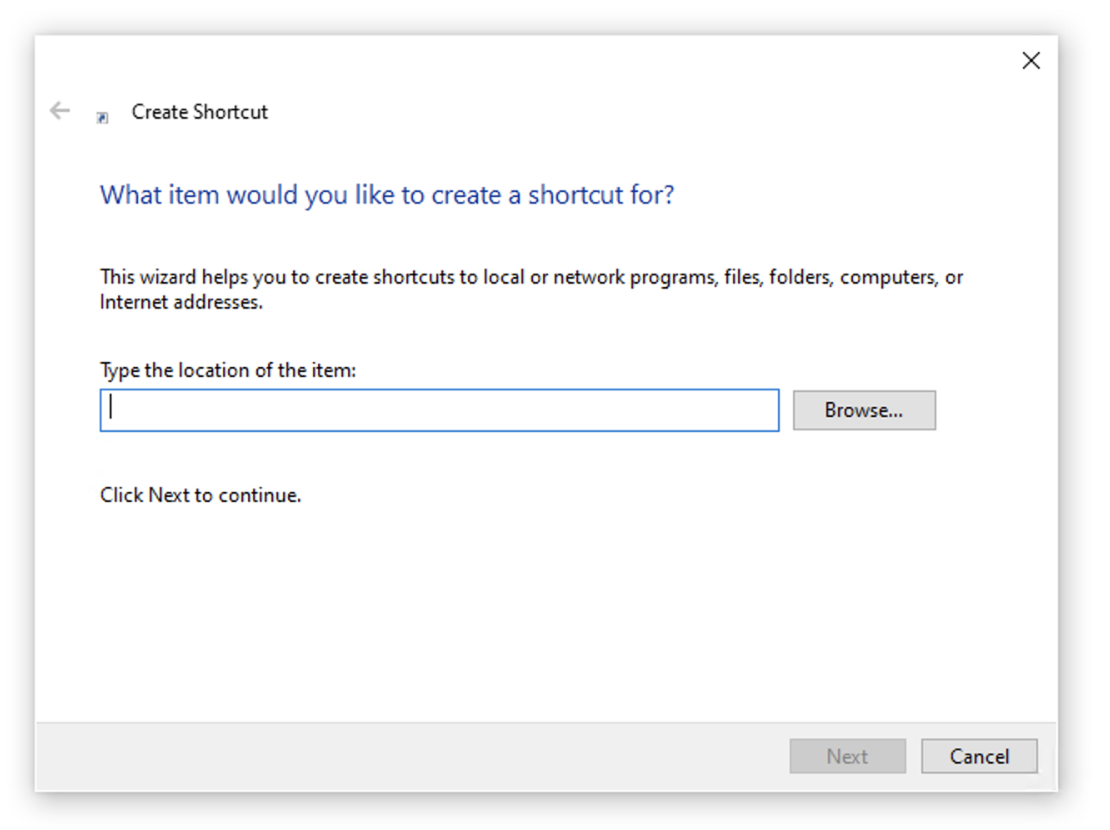
Paste the copied text and add " commstat.py" at the end.
Example: C:\Users\jmiller\AppData\Local\python\bin\python.exe commstat.py
Click the Next button.
Right-click on the shortcut you just created and select Properties
A Properties window will appear that looks like this
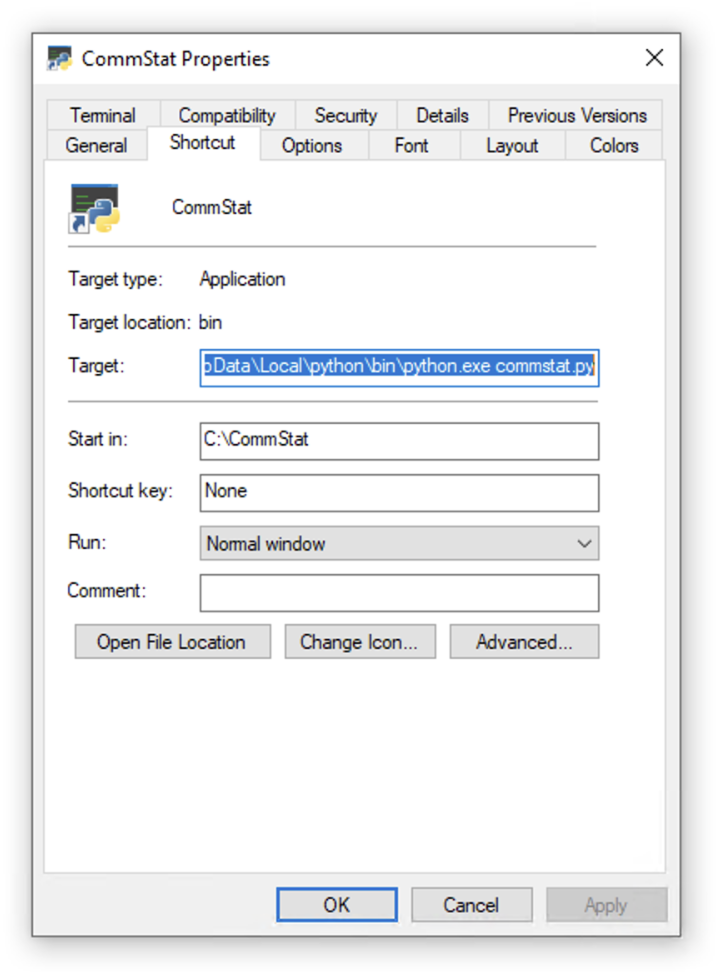
In the "Start In" box, enter the path to your CommStat folder.
Click OK and you are done.
Install or update Python3 to the latest version.
Create a folder for CommStat (CommStat is a good choice).
unzip the commstat zip file into this folder.
Use a terminal window and go into the directory you just created.
Type these commands:
CommStat>chmod +x linuxinstall.sh
CommStat>./linuxinstall.sh
Commstat>python3 commstat.py
Done! Commstat is now installed and running.
Create a folder for CommStat (CommStat is a good choice).
unzip the commstat zip file into this folder.
Use a terminal window and go into the directory you just created.
Type these commands:
CommStat>chmod +x macinstall.sh
CommStat>./macinstall.sh
Commstat>python3 commstat.py
Done! Commstat is now installed and running.
In the blue menu area, click Config
Then setup each of these items:
- User Settings - Configure your callsign, Grid Square, State and Default Map View.
- Manage Groups - Enter all of the groups you want to watch.
- JS8 Connectors - Configure CommStat to connect to the JS8Call app.
- QRZ Settings - If you do not have a QRZ paid subscription, skip these settings.
- Sound Settings - Edit your sound settings here.
Instructions and User Guide
Sorry, we don't have that available yet.
Comments, Questions, or Suggestions
Email: commstat@proton.me